


Your next shift. In your pocket.

Check where you're posted. Follow the site instructions. Record the patrol and report what matters, with your team connected to the same shift.

See a shift from start to finish

For guards and supervisors. Join with your company's invitation—your employer connects the sites and shifts you can access.

Attlock Guard app

Your next shift

Harbour Centre

16:00–00:00 · Evening shift

Check in at reception.
Read the site post orders.
  1. Review your assignment
  2. Follow the patrol route
  3. Keep your report connected

Illustrative shift · Your company supplies your assignments.

Before your first shift. Get connected to your team.

  1. Use your company invitation

    Your employer invites you to the right company workspace. Ask your supervisor if the invitation has not arrived.

  2. Install the guard app

    Download Attlock for Guard/Supervisor from the App Store or Google Play and sign in with your company account.

  3. Check your first assignment

    Check your assigned shift, site contact, post orders, and any required device permissions before work begins.

One shift, from start to finish. Know what comes next.

Follow Jordan's evening shift at Harbour Centre. Every step connects the work in the field to the record your team needs.

1Before the shift. Get the details.

Open your assigned shift before you leave. Check the site, start time, contacts, post orders, and checklist so you arrive knowing what the site needs.

Explore post orders
Attlock Guard appIllustrative shift

Know where to go. Know what to do.

  1. Your next shift

    Harbour Centre · 16:00–00:00

  2. Site and patrol instructions

    Reception, north wing, loading bay, south gate

  3. Before you start

    Read the post orders and assigned checklist

Jordan Lee · Illustrative shift record
2Start work. Record your arrival.

Arrive at the site and record your clock-in. The time and location context stay attached to the shift. If a record needs correcting, raise it with your supervisor.

Explore time and attendance
Attlock Guard appIllustrative shift

Your time, connected to the shift.

  1. Assigned evening shift

    Harbour Centre · 16:00–00:00

  2. Time recorded

    Clock-in entry · 16:02

  3. Site and location context

    Attached for your company's attendance review

Check your attendance record and raise corrections with your supervisor.

3Walk the route. Keep the record.

Follow the assigned route and scan the site's QR or NFC checkpoints. Keep each visit connected to the shift, and use the site instructions when something needs a closer look.

Explore guard tours
Harbour CentrePatrol route
  1. Reception · 18:05
  2. North wing · 18:16
  3. Loading bay · 18:28
  4. South gate · 18:42

4See something. Report it clearly.

Record what you saw while the details are fresh. Add the site, time, notes, and photos, then submit the incident for your team's review. Your supervisor handles the next step.

Explore incident reporting
Incident reportINC-1042

Loading entrance unsecured

Harbour Centre · Jordan Lee · 18:42

Site attachedPhoto attachedTime recorded
  1. Submitted by guardDetails and evidence recorded
  2. 2Supervisor reviewCheck context before sharing
  3. 3Client recordAvailable after approval

5Finish the shift. Pass on the context.

Check your completed tasks, add the pass-down for the next guard, and record your clock-out. Review anything still waiting to sync so outstanding work does not disappear with the shift.

Explore shift reports
Attlock Guard appIllustrative shift

Leave the next guard the context.

  1. Review the shift record

    Last checkpoint and assigned tasks

  2. Add the pass-down

    Loading entrance incident needs follow-up

  3. Clock out and close the shift

    Record your finish time and check sync status

A submitted handover stays connected to the site and your team.

Your observations. A clearer report draft.

Attlock AI for reportsComing soon

Planned AI assistance would help organize the notes and evidence you record into a draft. Check the facts, fill any gaps, and edit it before you decide to submit.

  1. Record what you saw

    Keep the site, time, notes, and evidence attached.

  2. Check the suggested draft

    Confirm the details and correct anything that is missing or wrong.

  3. Submit for your team's review

    Your supervisor still handles review, follow-up, and client sharing.

Attlock AIPlanned report concept

Guard's notes

18:42. Loading entrance unsecured. Photo attached. Supervisor contacted.

Harbour Centre · Site and time attached

Suggested draft · Not submitted

At 18:42, an unsecured loading entrance was observed at Harbour Centre. A photo was attached and the supervisor was contacted.

Guard checks the facts before submission

Illustrative concept. AI reporting assistance is not available yet and does not approve reports or replace emergency procedures.

The field is not always predictable. Know your next step.

When the connection drops.

Supported field records can stay on the device until connectivity returns. Check what is pending and confirm that it syncs. Live visibility, dispatch, and alerts need a connection.

When you need help.

Use your company's panic and welfare-check procedures, and keep the required radio or emergency contact method available. For immediate danger, follow emergency procedures and contact local emergency services.

Explore lone-worker support

Your supervisor has the context. You can focus on the site.

Assignments, field activity, and reports stay connected to the team coordinating the shift. Supervisors review records and follow-up, while company rules govern approvals and client sharing.

Explore team coordination
Supervisor follow-up
  1. Give the guard the context

    The shift, site instructions, and assignments stay connected.

  2. Review the field record

    Check patrol activity, attendance, and submitted incident evidence.

  3. Keep the next step clear

    Coordinate the response and keep follow-up visible to the team.

The app for your next shift. Ready when your team invites you.

Attlock for Guard/Supervisor is available for iOS and Android. Download the app, follow your company invitation, and check your assigned shift before you arrive.

Need an account or help signing in? Contact your supervisor or company administrator.

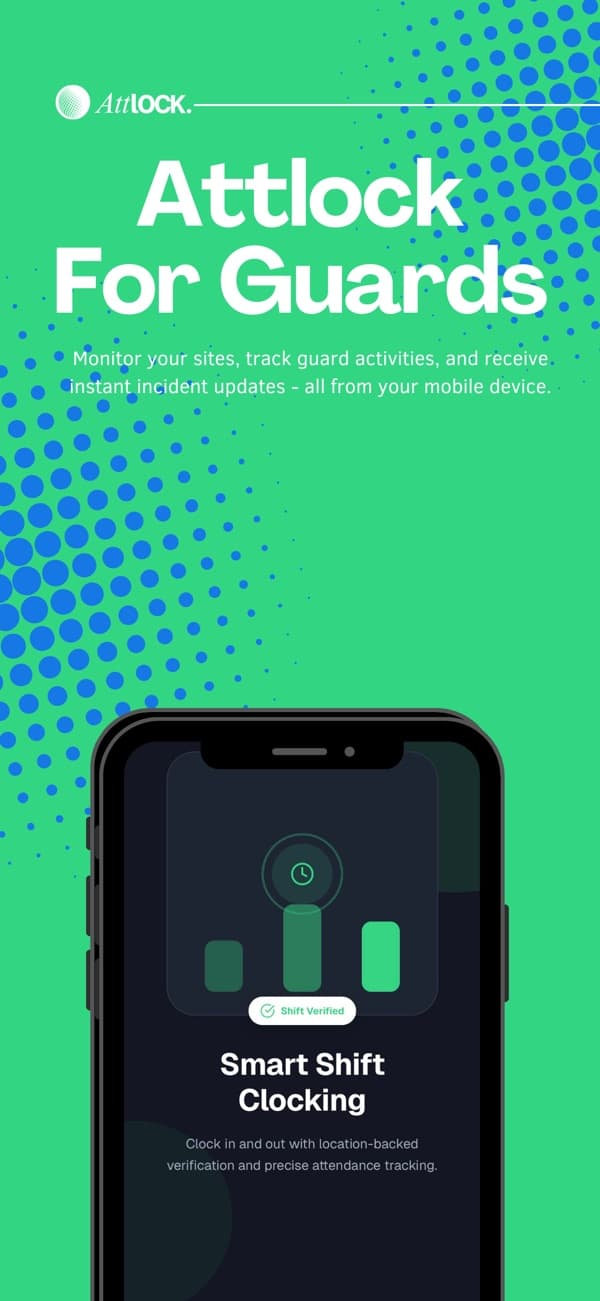
Attlock for Guard/Supervisor promotional artwork from its App Store listing

On your phone. On the web. With help when you need it.

Attlock guard web

Use your existing company account to review your shifts, timesheets, post orders, and reports in a browser. The workspace follows your role and assigned sites.

Open guard web

Use the mobile app for field tasks that depend on device permissions, location, or checkpoint scanning. Contact your company if you need account access.

Attlock Help Center

Find guides for getting started and using Attlock. Keep the Help Center nearby when you need a walkthrough, and ask your supervisor about company-specific instructions or account access.

Visit the Help Center

Questions before your next shift.

What to know about getting started, supporting your team, and running your sites.

Talk to our team

Your security company invites you to its Attlock workspace. Install Attlock for Guard/Supervisor, follow the invitation, and sign in using the account your company has set up. Ask your supervisor if you have not received an invitation.

Run your security team in one place.

Schedule shifts, track patrols, and share reports.